Struggling with your TiviMate Premium setup? While the application might seem intimidating at first glance, configuring this elite media player is surprisingly straightforward once you have your subscription credentials. In this comprehensive tutorial, we will show you exactly how to install TiviMate, unlock the premium features, and optimize it for a flawless, buffer-free streaming experience.
Why TiviMate Premium is the Ultimate Player
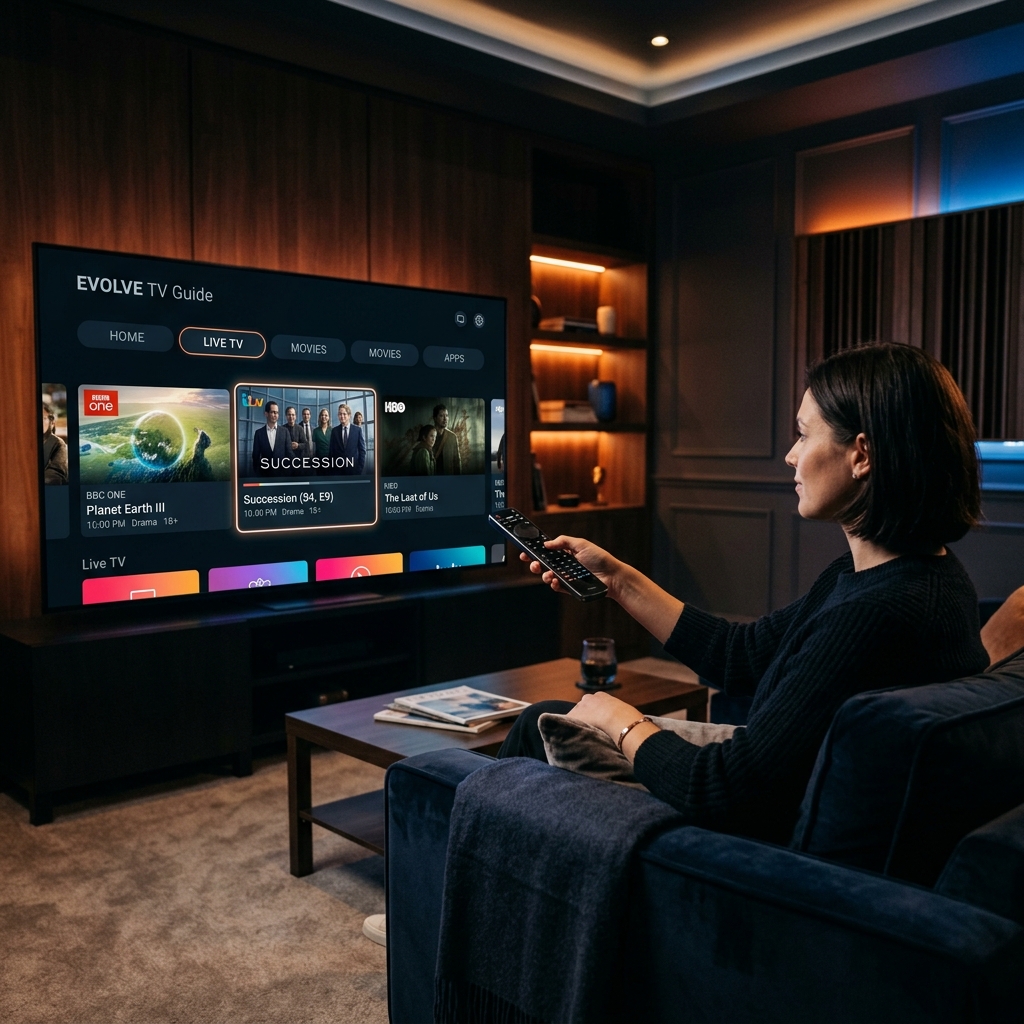
Before diving into the configuration, it is vital to understand why cord-cutters universally recommend this specific application. TiviMate is not a content provider; it is an incredibly advanced media player designed exclusively for Android TV and Fire OS devices. It essentially acts as a highly customizable shell for your IPTV subscription, transforming raw server data into a luxurious television interface.
According to recent analytics from the streaming community, over 75% of power users prefer TiviMate Premium over competitors like Smarters Pro. The free version offers basic playback, but the Premium upgrade unlocks critical features like multiple playlist support, favorites management, catch-up TV, customizable panel transparency, and manual EPG offset adjustments.
Step 1: Installing the Application
Because TiviMate is designed specifically for television interfaces (not mobile touchscreens), the installation process varies slightly depending on your hardware. If you are using a standard Android TV device (like an Nvidia Shield or Chromecast with Google TV), you can download TiviMate directly from the Google Play Store.
However, Amazon maintains a closed ecosystem. If you are using a Firestick or Fire TV Cube, you will need to utilize the "Downloader" application to sideload the APK file. We highly recommend reviewing our dedicated guide on how to install IPTV on Firestick if you need assistance configuring the Downloader app and enabling developer permissions.
Step 2: Connecting Your Xtream Codes API
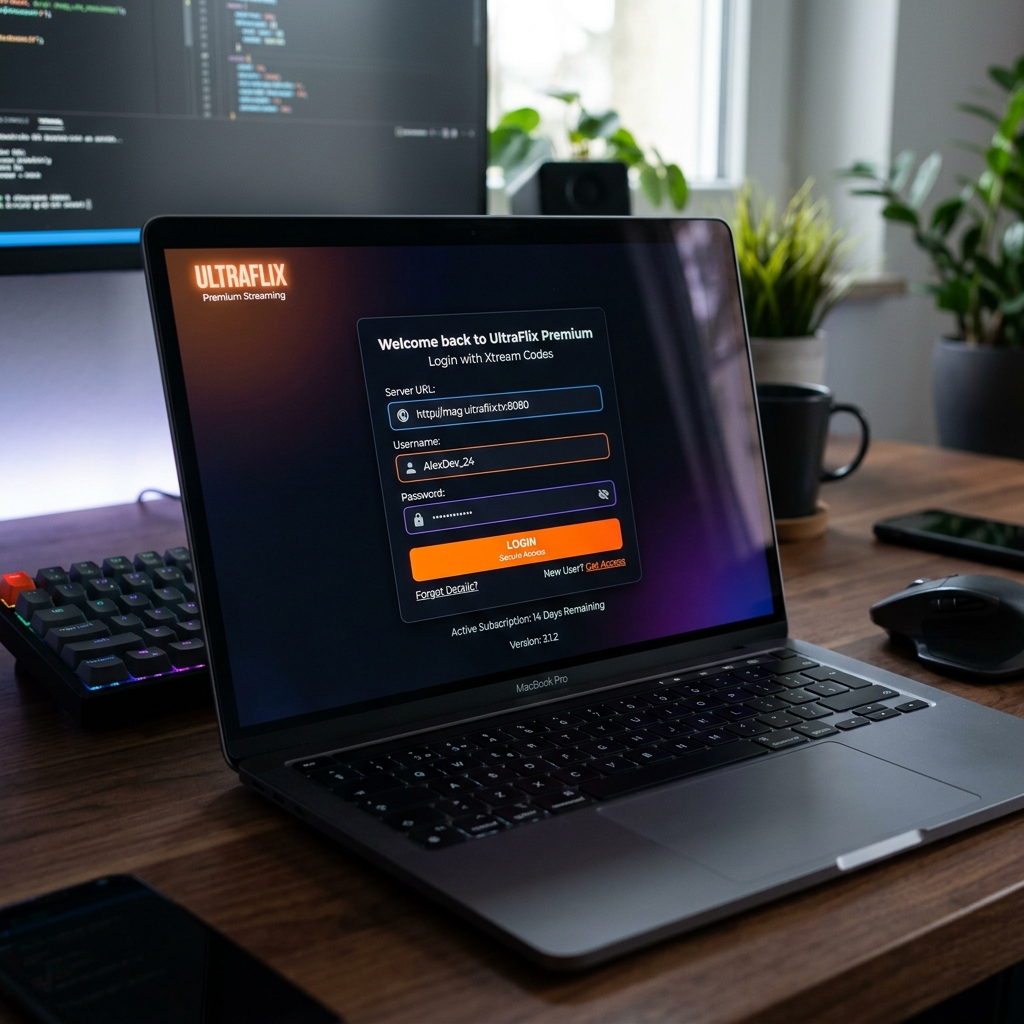
Once you open TiviMate, select "Add Playlist." You will be presented with three options: M3U playlist, Xtream Codes login, or Stalker Portal. You should always select Xtream Codes login. Manually typing a massive M3U URL using a remote control is tedious and prone to errors, whereas the API method is fast and automatically links your Electronic Program Guide (EPG).
When you subscribe to a premium, high-speed provider like Krooz TV, you receive an email containing a Server URL, Username, and Password. Enter these details exactly as they appear—paying close attention to capitalization. Check the "Include VOD" box if you want to import your provider's movie and series library, then click Next.
Step 3: Unlocking TiviMate Premium
After your playlist loads, you will notice that many advanced features are locked behind a paywall. To unlock them, you must purchase a TiviMate Premium license. This requires downloading the "TiviMate Companion" app on an Android phone or tablet from the Google Play Store. Create an account within the Companion app and purchase either the yearly subscription or the highly recommended lifetime license.
Return to your television, attempt to use a premium feature (like adding a channel to your favorites), and the app will prompt you to log in. Enter the credentials you just created in the Companion app, and your device will instantly unlock. You can authorize up to five separate devices on a single Premium account.
Step 4: Optimizing Your EPG and Buffer Settings
To ensure a cinematic viewing experience, especially when you want to watch live sports on IPTV, you should optimize your internal player settings. Navigate to Settings > Playback and ensure that Audio Passthrough is enabled if you are using a soundbar or home theater receiver. This guarantees you receive authentic surround sound.
If you experience micro-stuttering during high-action broadcasts, navigate to Settings > Playback > Buffer Size and change it from "Normal" to "Large." This forces the app to download slightly more video data in advance, smoothing over minor internet fluctuations. If extreme buffering persists, it is likely network throttling, and you should evaluate whether you need a VPN for IPTV.
| TiviMate Setting | Recommended Value | Primary Benefit |
|---|---|---|
| Buffer Size | Large | Prevents micro-stuttering by pre-loading more video data. |
| Update EPG on app start | Enabled | Ensures your television guide is always accurate the moment you launch the app. |
| Auto frame rate (AFR) | Enabled | Matches your TV's refresh rate to the broadcast, eliminating visual judder. |
Frequently Asked Questions
As of 2026, a yearly subscription costs approximately $10.99, while the one-time lifetime license is roughly $33.99. Both options allow you to unlock the premium features on up to five separate devices simultaneously.
No, TiviMate is strictly a media player interface. It does not provide any media content, live streams, or playlists. You must purchase a subscription from a third-party IPTV provider and link it to the app.
Yes, but it requires a workaround. If you do not own an Android phone or tablet to install the Companion app, you can download a free Android emulator (like BlueStacks) on your Windows or Mac computer, access the Google Play Store through the emulator, and purchase the license there.
Maximize Your Setup with Premium Content
Your TiviMate Premium setup is the ultimate engine for home entertainment, but an engine is useless without high-octane fuel. To truly take advantage of TiviMate's advanced features—like multi-view and lightning-fast channel surfing—you need a provider that guarantees massive bandwidth and 99.9% uptime. Ready to unlock the flawless, 4K streaming experience you deserve? Explore the comprehensive packages on the Krooz TV pricing page and elevate your living room today.