Setting up Krooz TV on your Samsung or LG Smart TV allows you to enjoy over 30,000 live channels and 150,000 on-demand titles in crisp 4K UHD without purchasing an external streaming stick. Because Samsung Tizen and LG webOS run proprietary operating systems rather than Google Android, connecting your service requires a dedicated native media player. In this definitive 2026 guide, we walk you step-by-step through installing the best Smart TV players, configuring Xtream Codes API, and tuning your network for zero buffering.
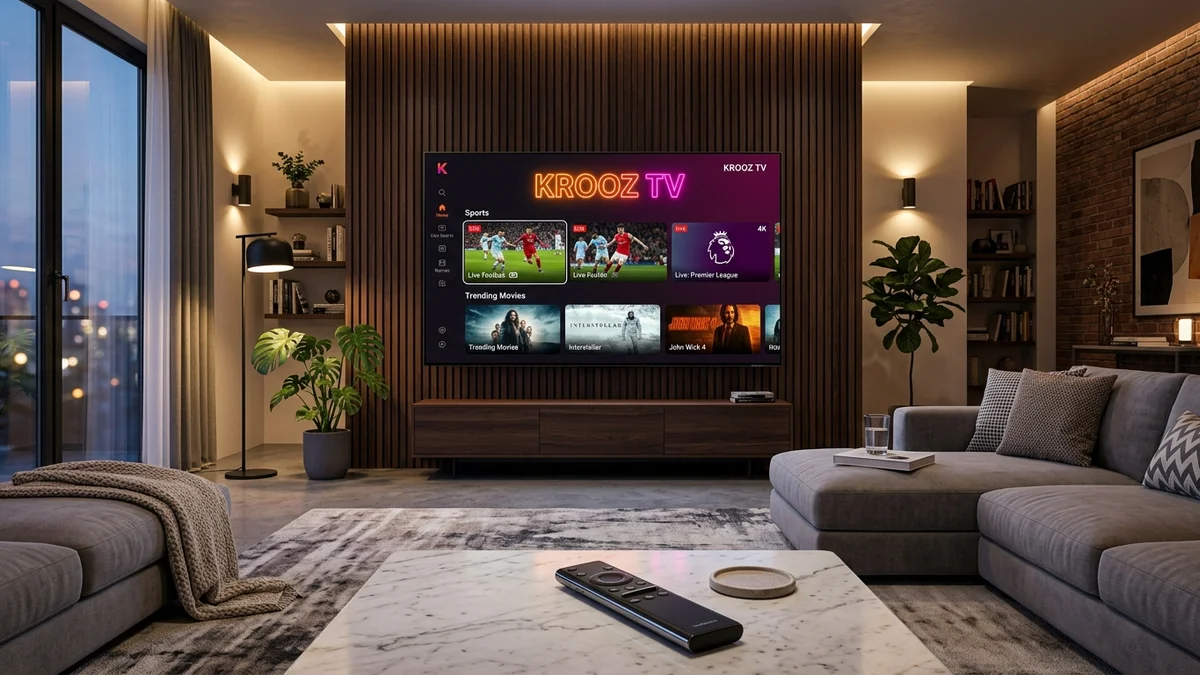
Why Setup Krooz TV Directly on Your Smart TV?
According to recent 2026 digital home consumer data from Parks Associates, over 68% of North American and European households stream entertainment through native Smart TV operating systems rather than dongles. Watching directly on your television offers distinct advantages:
- Single Remote Convenience: Eliminate remote clutter by controlling live TV, volume, and smart features with your native Samsung OneRemote or LG Magic Remote.
- Optimized Display Processing: Modern Neo QLED and OLED panels leverage onboard AI upscaling and HDR tone mapping directly through native player applications.
- Zero Clutter: No dangling HDMI sticks, power bricks, or extra wires behind sleek wall-mounted installations.
- Instant Launch: Pin your IPTV app to the home ribbon launcher for instant one-click access whenever you power on your television.
Understanding the Smart TV Ecosystem: Tizen vs. webOS
Before beginning installation, it is crucial to recognize how Smart TV software works. Unlike Android TV or Fire OS, Samsung Smart TVs run Tizen OS, while LG TVs operate on webOS. Neither system supports direct Android APK installation or sideloading via apps like Downloader.
Instead, users download approved IPTV media players directly from the official Samsung Smart Hub or LG Content Store / Apps. Once installed, you connect your subscription credentials provided by your provider. With an ultra-stable service like Krooz TV, setup takes under five minutes.
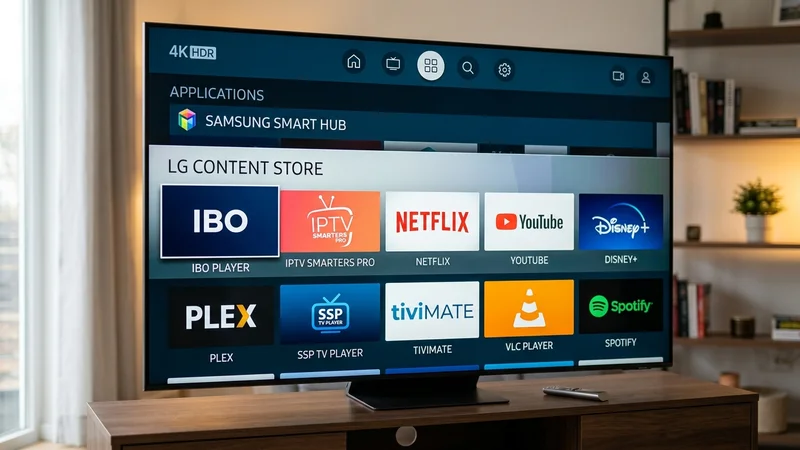
Top Compatible IPTV Players for Samsung & LG Smart TVs
Not all media players perform equally on television processors. Below is our benchmark of the most reliable Smart TV players tested with Krooz TV streams in 2026:
| Player Application | Compatible OS | Setup Protocol | EPG & Catch-Up | Best Feature |
|---|---|---|---|---|
| IBO Player Pro | Samsung Tizen & LG webOS | Device MAC & Key Portal | Full EPG / Multi-Audio | Fastest channel switching speed |
| IPTV Smarters Pro | Samsung Tizen & LG webOS | Xtream Codes API / M3U | Full EPG / Series Tracker | Familiar cable-style layout |
| Nanomid Player | Samsung Tizen & LG webOS | Web Upload / QR Code | Full EPG / Subtitles | Built-in buffer optimization engine |
| Smart IPTV (SIPTV) | Samsung (2018+) & LG webOS | MAC Address Web Upload | Standard EPG | Minimalist lightweight footprint |
| Bay TV / Bob Player | Samsung Tizen & LG webOS | MAC Address & Portal | Integrated EPG | Intuitive remote-friendly menus |
If you also own streaming sticks in other rooms, check out our companion guides on how to setup IPTV Smarters Pro and how to setup TiviMate Premium for Android devices.
Method 1: Setup Using IBO Player (Recommended for Both Samsung & LG)
IBO Player is widely considered the smoothest player for modern Smart TVs. It requires zero on-screen typing of long playlist URLs, making it the most user-friendly choice.
- Download the App: Open the Samsung Smart Hub (or LG Apps store). Search for IBO Player and click Install.
- Open and Note Credentials: Launch the app. On the home screen, you will see your TV's unique Device MAC Address and Device Key.
- Open the Web Portal: On your smartphone, tablet, or laptop, navigate to the official IBO Player playlist management portal (
iboplayer.pro/manage-playlists/login). - Log In: Enter the Device MAC and Device Key shown on your TV screen.
- Add Playlist (Xtream Codes API): Click Add Playlist. Select Xtream Codes, enter a playlist name (e.g., Krooz TV), followed by your Krooz TV Server URL, Username, and Password.
- Save and Reload: Click Save. Return to your television, press the Reload button, and your entire channel lineup, VOD catalog, and EPG guide will instantly load.
Method 2: Setup Using IPTV Smarters Pro on Smart TV
If you prefer logging in directly through your television interface without visiting an external website, IPTV Smarters Pro is the ideal application:
- Install from App Store: Search for IPTV Smarters Pro in the Samsung App Store or LG Content Store and install it.
- Accept Terms: Launch the app and accept the standard user agreement.
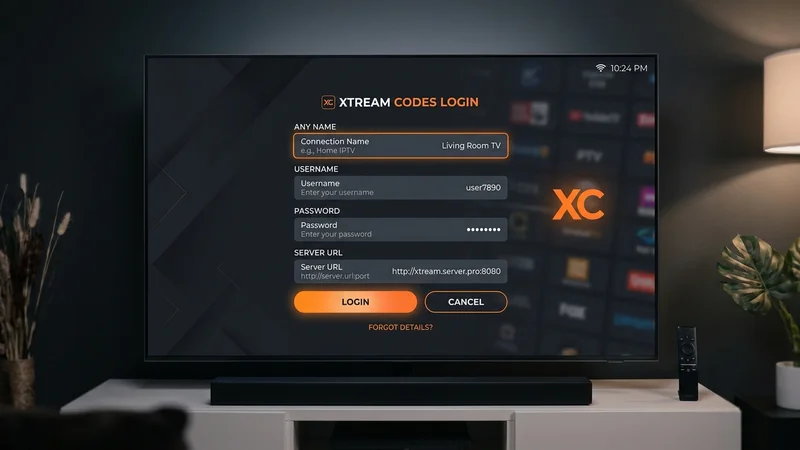
- Select Xtream Codes API: On the login screen, select Login with Xtream Codes API (do not choose single M3U playlist file).
- Input Account Details: Enter any display name, followed by your credentials sent from Krooz TV:
- Username: Your allocated subscriber username
- Password: Your secure alphanumeric password
- Server URL: The active high-speed server portal address provided in your activation email
- Add User: Click Add User. The application will authenticate with Krooz TV servers and download live channels, movies, and series categories in seconds.
Method 3: Setup Using Nanomid Player
For users experiencing audio synchronization or format issues on older smart TV models, Nanomid Player offers extraordinary codec flexibility:
- Install Nanomid Player from your Smart TV app store.
- Open the application and press the green button or navigate to Settings > QR Code.
- Scan the QR code with your mobile camera or visit
nanomid.com/playlist. - Paste your Krooz TV M3U Plus URL into the portal and assign an identifier.
- Restart Nanomid on your TV to begin streaming.
Network Tuning: How to Prevent Buffering on Smart TVs
Smart TVs often have weaker Wi-Fi chipsets than dedicated streaming boxes. If you ever experience micro-stuttering or spinning wheels during major live sports events, implement these verified optimization steps:
- Use Wired Ethernet Over Wi-Fi: Whenever possible, connect your Smart TV directly to your home router with a Cat6 Ethernet cable. This eliminates local radio interference from microwaves, walls, and smartphones.
- Switch to 5GHz Wi-Fi: If wiring is impossible, connect your TV to your router's 5GHz band rather than 2.4GHz. 5GHz provides up to 3x higher throughput, essential for 4K bitrates.
- Update Smart TV DNS: Smart TVs frequently suffer from ISP DNS lookups that throttle media streams. On your TV, navigate to Settings > Network > Network Status > IP Settings > DNS Server and manually change it to 8.8.8.8 (Google DNS) or 1.1.1.1 (Cloudflare).
- Clear App Cache Regularly: Modern smart TVs have limited flash memory. Periodically restart your television by holding the remote power button for 5 seconds until the brand logo reappears.
For in-depth troubleshooting techniques, explore our comprehensive resource on how to stop IPTV buffering permanently.
Multi-Screen Streaming for Smart TV Households
Do you have a Samsung TV in the living room and an LG TV in the bedroom? Standard single-screen IPTV accounts will terminate your connection if both televisions attempt to watch at the same time.
With Krooz TV, you can easily connect up to 5 simultaneous devices under one unified billing account. Discover how multi-connection plans protect you from stream drops in our IPTV for multiple devices guide.
Frequently Asked Questions
Yes. Samsung Tizen and LG webOS TVs do not support Android APKs directly, but you can download verified IPTV players like IBO Player, IPTV Smarters Pro, or Nanomid Player directly from the Samsung Smart Hub or LG Content Store, then connect your Krooz TV Xtream Codes or M3U credentials.
IBO Player Pro and IPTV Smarters Pro are currently the top-rated players for Samsung Tizen. Both offer hardware-accelerated 4K playback, complete EPG electronic programming guide integration, multi-audio selection, and rapid channel navigation with your Samsung Solar remote.
No developer mode or sideloading is required. All recommended media players (IBO Player, Nanomid, IPTV Smarters) are hosted officially in Samsung's and LG's respective application stores. You simply install them directly and enter your subscription login details.
For reliable 4K Ultra HD and 60fps live sports on Krooz TV, we recommend at least 25 to 30 Mbps of dedicated download speed. Connecting your Smart TV via wired Ethernet or a dedicated 5GHz Wi-Fi band minimizes latency and packet loss.
Single-connection accounts can only stream to one screen at a time. If you have Smart TVs in both the living room and master bedroom, you can upgrade to a multi-screen subscription (2 to 5 connections) to watch different channels concurrently without server disconnects.
Elevate Your Smart TV Entertainment with Krooz TV
Transforming your Samsung or LG Smart TV into a cinematic entertainment powerhouse has never been simpler. By pairing your high-definition display with Krooz TV's enterprise server infrastructure, you unlock over 30,000 live HD/4K channels, comprehensive electronic program guides, and pay-per-view sporting spectacles without pricey cable contracts.
Ready to test your Smart TV setup risk-free? Experience the ultra-low latency difference firsthand with an IPTV free trial, or visit the Krooz TV pricing page to choose the perfect plan for your home theater today.